
If you are experiencing problems with GMetrix Outlook practice test content, please follow the steps below to ensure that the GMetrix Outlook tests run properly:
GMetrix SMS7
Install the latest version of the GMetrix SMS application
- Navigate to the website https://www.gmetrix.net/GetGMetrixSMS.aspx
- Then follow our article on How to Install GMetrix SMS on Windows
Outlook Add-ins
Make sure all Add-ins are disabled in Outlook.
- Open the Microsoft Outlook Application
- Go to File > Options > Addins

- At the bottom, next to Manage, make sure there is a dropdown and that it says COM Add-ins, then click Go...
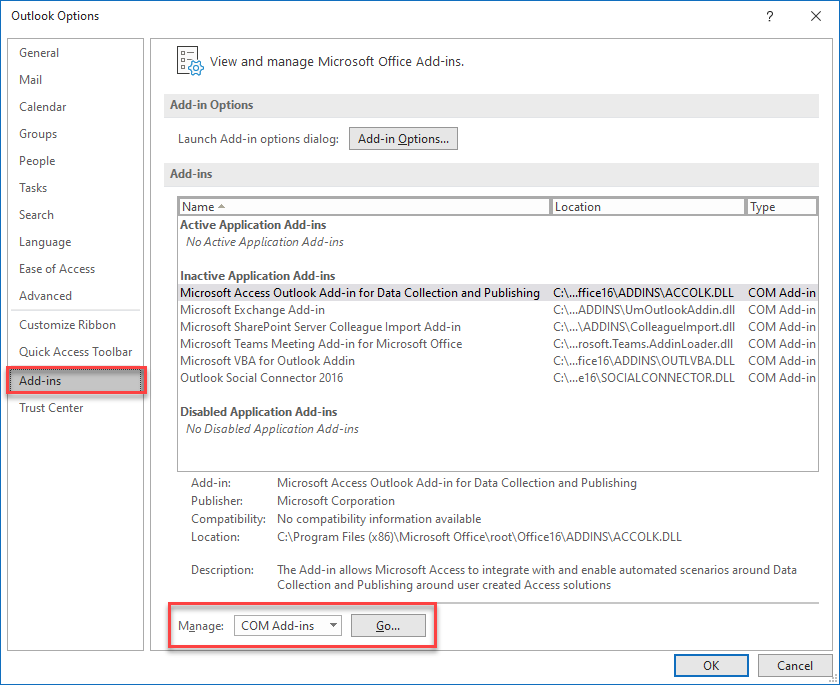
- Disable ALL add-ins by unchecking them. Then click OK and close Outlook

Prompt for Profile
Prompting for Profile can assist with Outlook Profile issues that appear
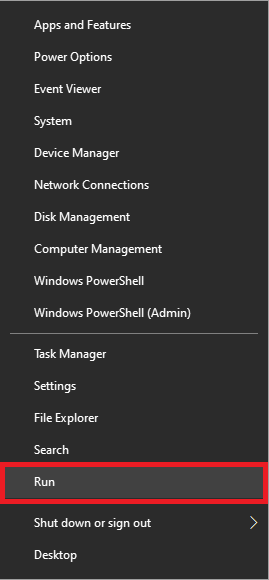
- Navigate to Control Panel by right-clicking the Windows Icon and selecting the Run option

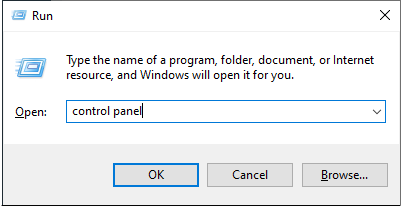
- In the Run dialog box, type "control panel" then select the OK button
- Select the Mail tab
Note: You may need to change View By to Small Icons.
- In the dialogue box that comes up, click on Show Profiles.
Note: If you receive a notification that says "This feature has been disabled by an Administrator," simply resume or start a new Outlook practice exam, then save and exit. This will clear that message.
- On the new dialog window, click Prompt for profile to be used.
Note: If applicable, remove all profiles that say GMetrix Backup
- Click OK
Once you are finished with the Outlook practice exams, you can simply go in through the previous steps and uncheck Prompt for profiles to be used to return to normal.