
Using the Student Import Tool, you can create multiple Student Accounts from a single CSV file. If a username on the list already exists, you can have that account added automatically.
Before You Begin
- You can download a template and edit it using a spreadsheet editor, such as Microsoft Excel, Apple Numbers, or Google Sheets.
- Be sure to save or export the document as a CSV.
Import Students Using a CSV File
When you have a CSV ready, you can upload the file in the Administrator Portal:
- Select Students from the sidebar.
- Select New Student → Import.
- If you need the template, select Download Template at the bottom of the page.
- Upload: Drag and drop the completed CSV file into the upload box, or choose Select files to choose it from the file browser.
- If you want to match existing students by username, check the box Update existing students that match by username.
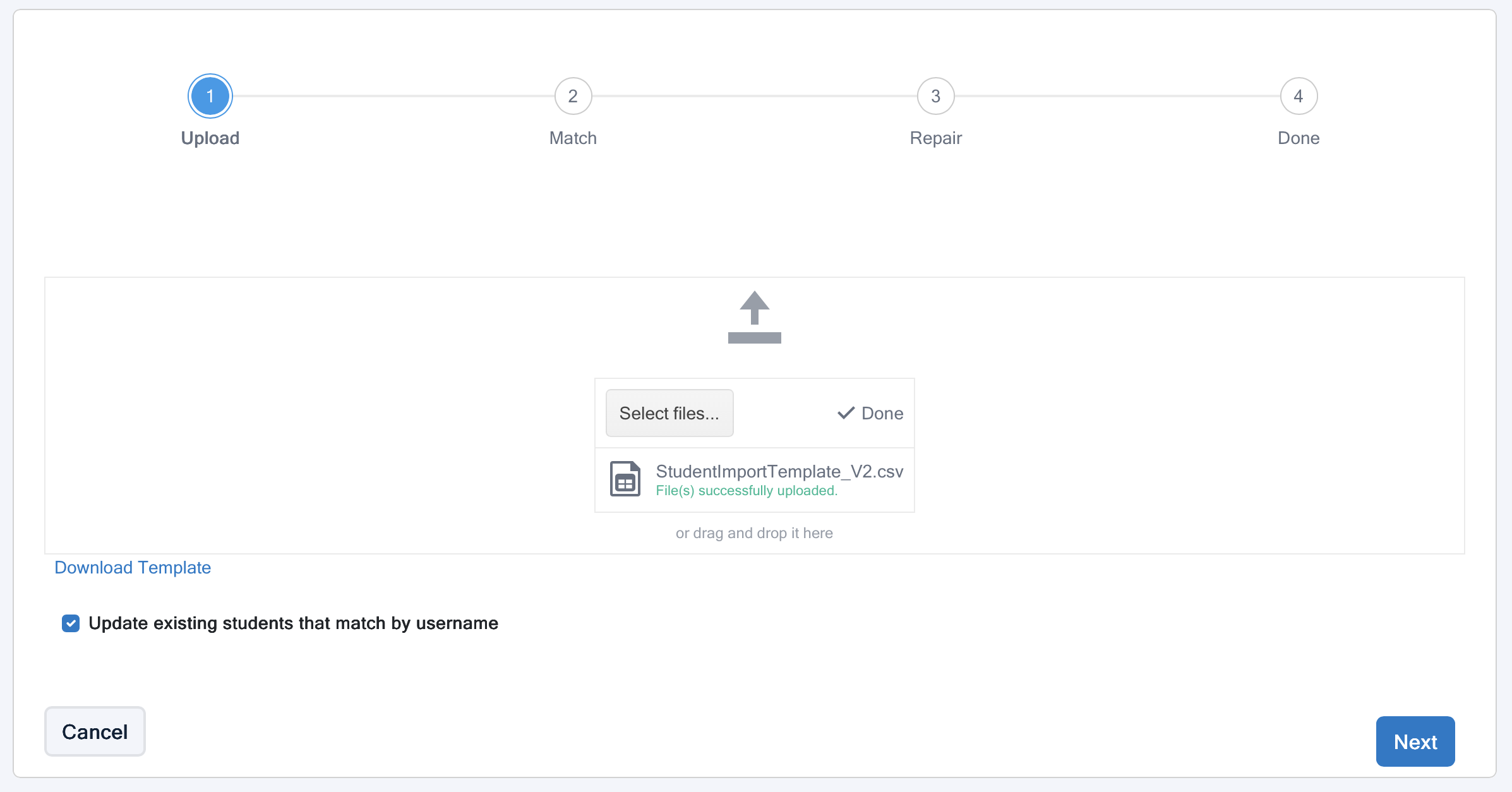
- If you want to match existing students by username, check the box Update existing students that match by username.
- Select Next to import the student list.
- Match: The imported table should show up as a list of students. If the columns are in the wrong order, use the dropdown menus to match each item (e.g., First Name, Username), to the correct column.
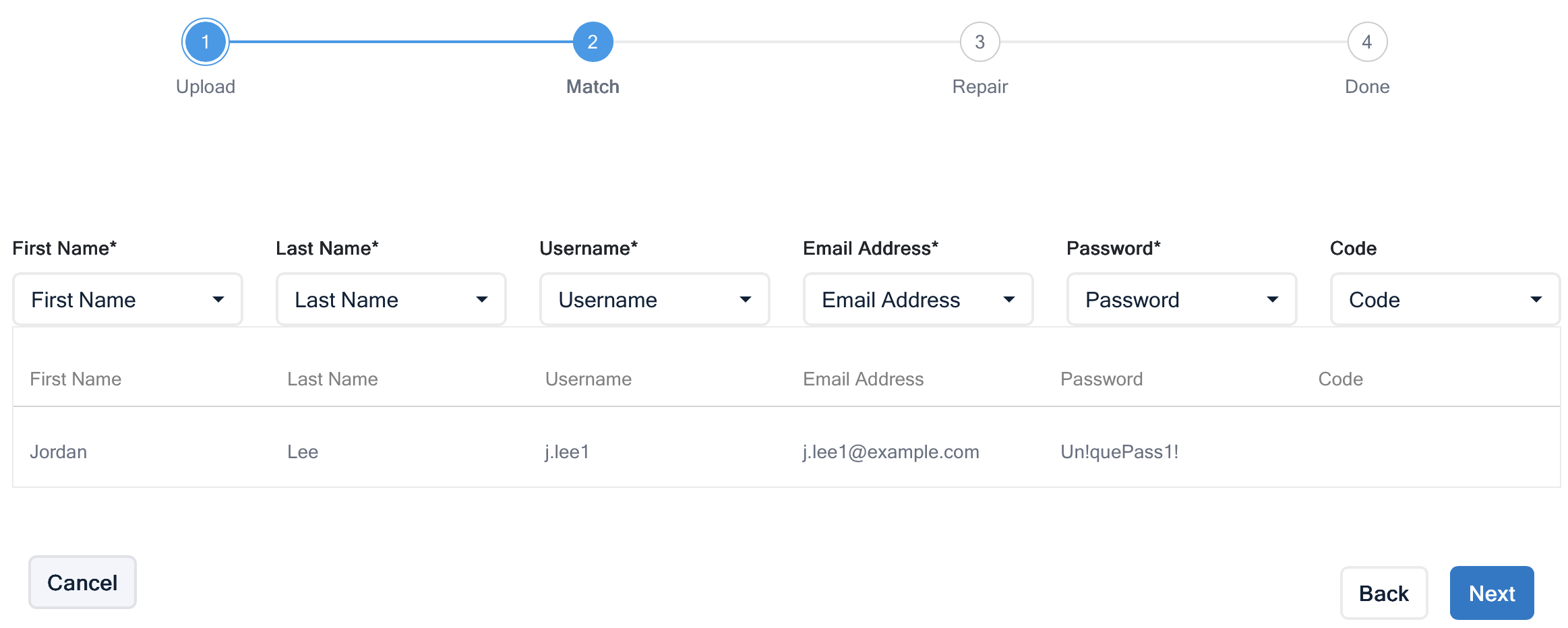
- Select Next to scan for issues and make edits.
- Repair: If any rows are incorrect, you can verify and fix them.
- Select Check Data to search for issues.
- In the list, select a cell to edit it or add missing information.
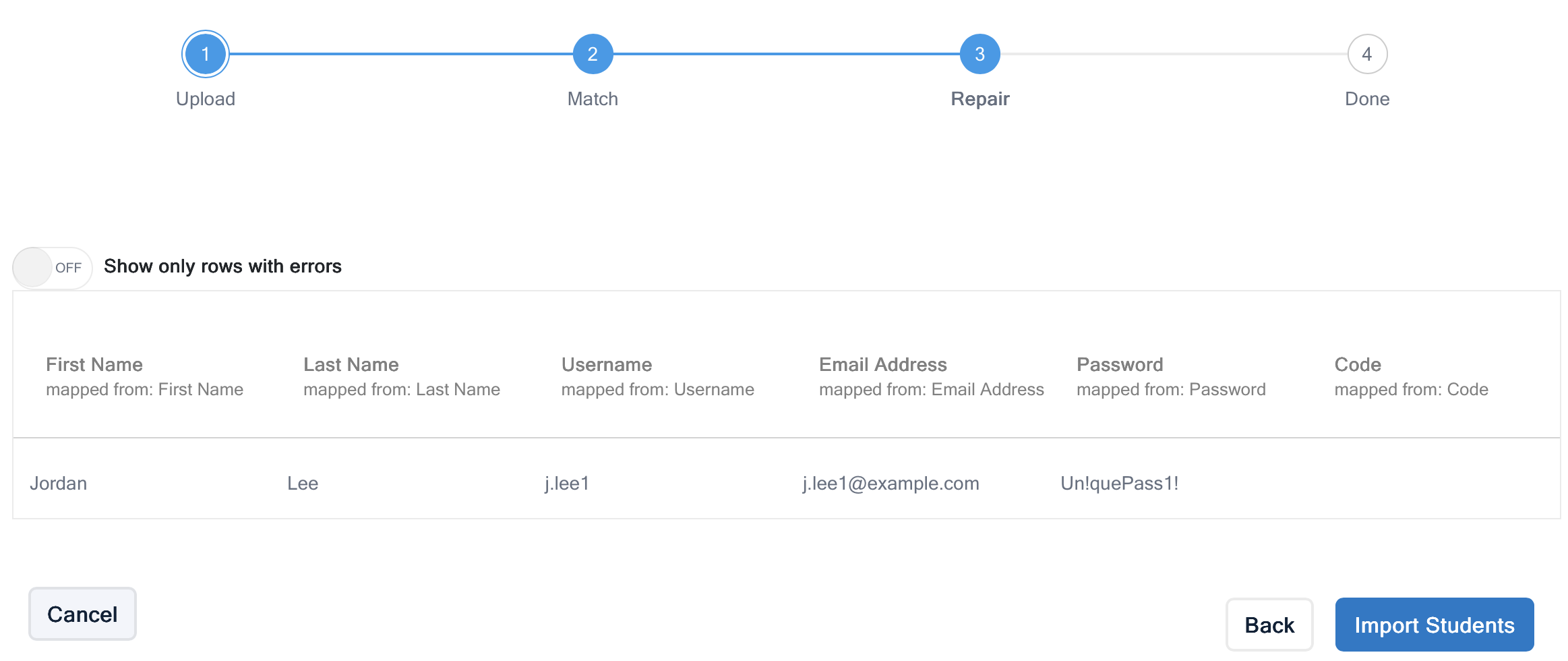
- After fixing any issues, select Next.
- Done: If successful, you will see a confirmation page showing the number of students added and updated.
- Select View Students to exit.
Add Students to a Classroom
See main article: Add Students to a Classroom
After creating Student Accounts using the Student Import Tool, they can be added to a classroom.
- Select Classrooms from the sidebar.
- Select View next to the desired Classroom.
- In the Students tab, select New Student → Add Existing Student(s).
- Select one or more Student Accounts using the checkboxes.
- Select Add Student(s) to finish adding the selected Student Accounts to the Classroom.
Note: To remove students from a Classroom, select the delete button next to the desired student, then select Confirm.