
You can see statistics associated with a Course using Course Reports. There are two types of Course Reports: Course Breakdown Report and Course Summary Report.
- Course Breakdown Report: Provides a complete breakdown of the selected Course.
- Course Summary Report: Provides an overview of Classroom progress and activity within a Course, including individual status, progress, and time spent across Course resources.
Run Reports
You can find Course Reports and other reports in the Reports view.
- From the sidebar, select Reports → Create.
- Scroll to Course Reports, and select Viewnext to the type of report you want to run:
- Course Breakdown Report
- Course Summary Report
- On the right-side of the page, use the Report Filters to specify which information to show. Use the Report Filters button to show or hide the filters.
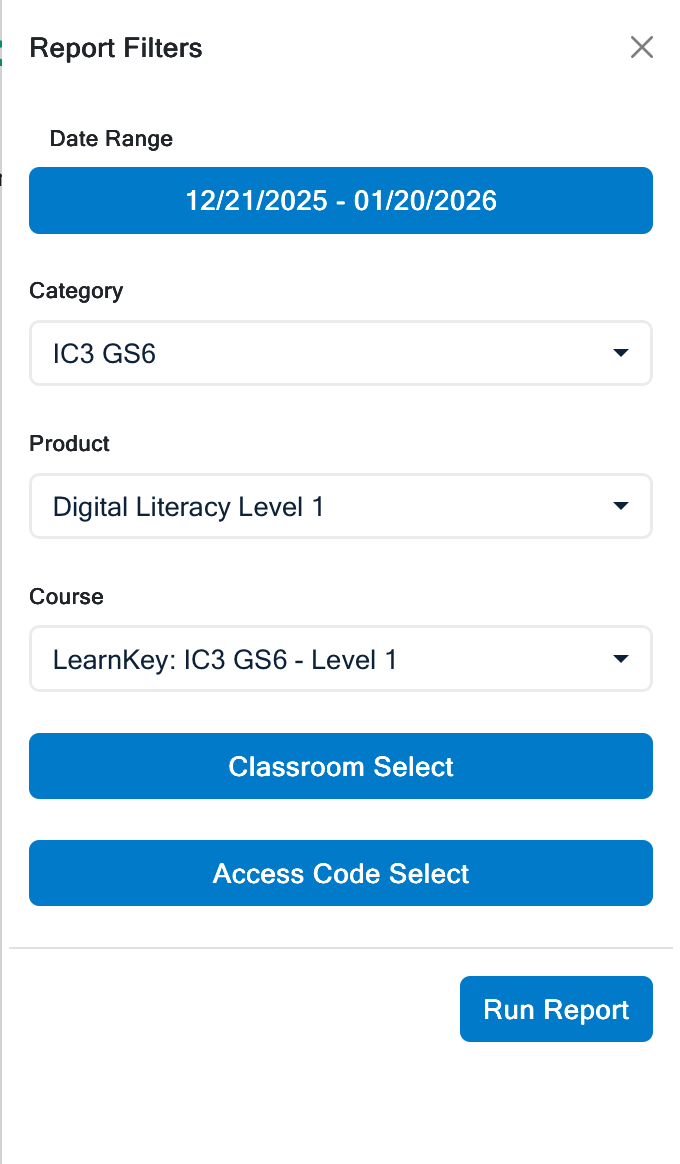
- Date Range: Choose which dates to include in the report. (Defaults to 30 days).
- Category: Choose a Product Category from the menu.
- Product: Choose a Product/Program from the menu.
- Course: Choose a Course from the menu.
- Classroom Select (Optional): Search and select one or more Classrooms to include in the report.
- Access Code Select (Optional): Search and select one or more Access Codes to include in the report.
- Select Run Report.
Pro Tips
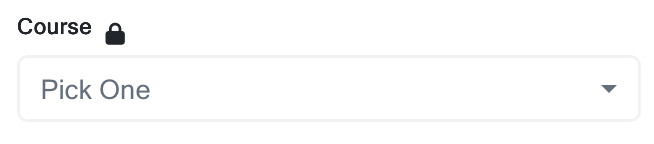
- Locked Filters: Filters must be selected in the following order: Category → Product → Course. If a lock appears next to a filter, check that the previous filter has been set. Locks can also indicate that data isn’t available for the selected filters.
- Access Codes and Classrooms: These are optional and can be used to help further refine the contents of the report.
- No Results: If you see “No Results Found” try removing some filters to expand your search.
View Reports
- After running the report, any available data will be displayed. If no data is available for your search, you’ll see “No Results Found.”
- If data is available, it will be displayed in the results:
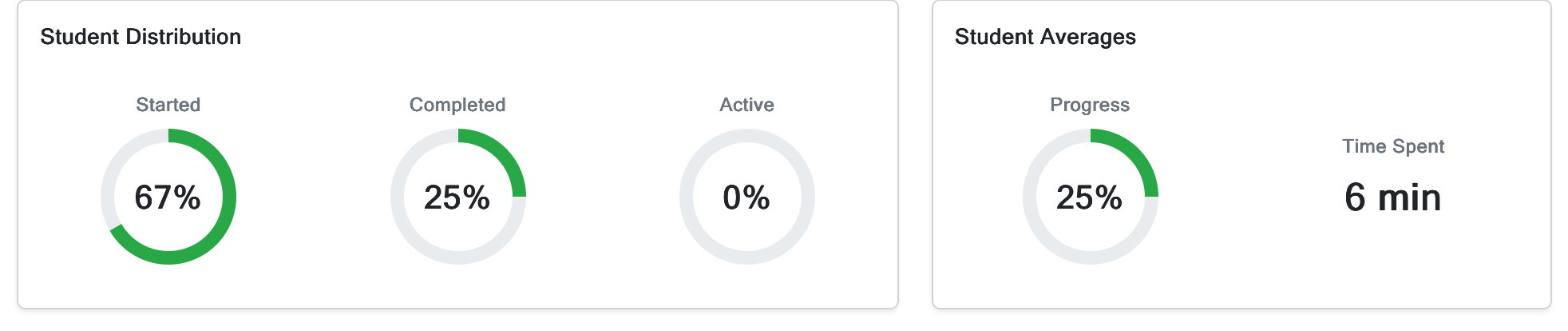
- Information Tiles: These tiles visualize the information within a report. This includes Student Distribution (Started, Completed, and Active), as well as Student Averages (Progress and Time Spent). The options may vary depending on the type of Course Report.
- Report Details: The list view shows the results of the report. It adapts to the View Optionsselected at the top of the list:
- Student: Lists student statistics individually
- Resource: Sorts individual Resources by section, Expand a Course section to see individual stats for each Resource.
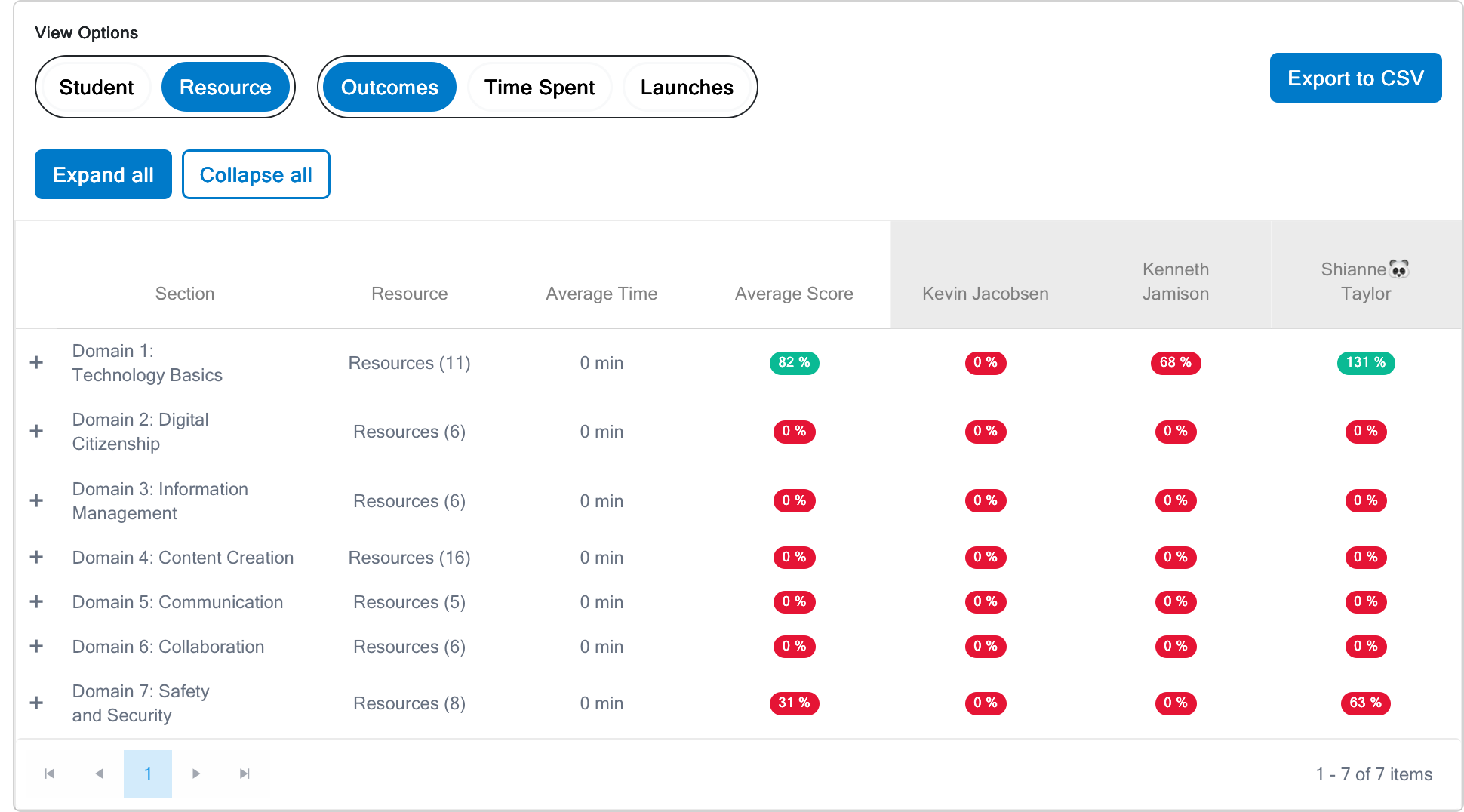
- Additional View Options: In addition to the Student and Resource views, you can choose which data to display: Outcomes, Time Spent, Launches.
- Information Tiles: These tiles visualize the information within a report. This includes Student Distribution (Started, Completed, and Active), as well as Student Averages (Progress and Time Spent). The options may vary depending on the type of Course Report.
Pro Tips
- View Options: Course Reports contain a lot of information. Rather than show all that data at once, different options lets users choose which information is visible.

Exporting and Saving Reports

There are three ways to save a report. Choose the one that fits your needs:
- Save Report: Creates a Custom Report that can be accessed from the Reports View (Sidebar → Reports → Create).
- Share URL: Generate a sharable link. You can send this link to people with access.
- Export to CSV: This option is separate from the other two; you can find it in the results list. Use it to generate a CSV file that can be downloaded to your device.
Pro Tips
- Export CSV: For a comprehensive report, export the results as a CSV file.
- Save and Share: Create a new Custom Report using the current filters, or create a sharable link for the current report.